All Document Guide
- 3.8
- Rating
- 1.00M
- Installs
- Free
- Price
 Analysis by App-foxy
All Document Guide is a free productivity app from XuanLong Studio that aims to make everyday document work easier for people who want a straightforward starting point. I approached it as someone who does not want to spend time learning a complicated office suite, and that is the right way to understand its appeal: it is positioned as a practical guide for basic document processing rather than an all-purpose replacement for a full desktop office setup.
My first impression is that the app makes the most sense for occasional users. If you regularly need to understand common document tasks, organize your next step, or find a simple route through routine file work, its focused approach can feel less intimidating than opening a large professional application. The store summary describes it as meeting basic document-processing needs, and that wording matters. This is best treated as a gentle productivity companion, not a complete professional document studio.
It is available at no cost and carries an Everyone age rating, which makes it approachable for students, families, casual users, and people setting up a phone for a relative. Its current version is 1.1.0, and it runs on Android 6.0 or later. The app has passed the one-million-install mark and holds an average rating of 3.8 from roughly 4.3 thousand ratings, so there is enough public use to suggest that the basic idea has found an audience, while the rating also hints that expectations should remain sensible.
You May Also Like

 Blood Strike: 2.5 Anniversary
Blood Strike’s Loadouts Turn Every Drop Into a Tactical Gamble
A close look at Blood Strike’s custom loadouts: how fast access to signature weapons reshapes its battle royale rhythm, rewards preparation, and narrows the gap between fights.

 Pandora - Music & Podcasts
Pandora’s Music Is Easy to Start, but Harder to Recover
Pandora’s strength is its low-effort path from a seed to a station. Its weak spot is how much confidence it asks you to place in connection, setup, and quiet recovery.

 8 Ball Pool
 Is Built on Rivalries, Rematches, and Routine
A close look at the rivalries, rematches, shared routines, and unanswered safety questions that turn a quick pool match into a persistent mobile community.

 Samsung Music
’s Quiet Strength Is Playing What You Already Own
Its reach comes less from spectacle than from dependable access to a personal library. That simplicity is both the app’s strongest retention engine and its ceiling.

 AccuWeather: Weather Radar
AccuWeather Review: A Quick, Clear Forecast for Everyday Decisions
For everyday plans, the best forecast is the one you can understand quickly. AccuWeather makes rain timing, radar, and local conditions easy to act on, with a few trade-offs.

 Hill Climb Racing
Why Hill Climb Racing Still Turns Crashes Into One More Run
A tiny car, a bumpy hill and one more upgrade: Hill Climb Racing keeps resurfacing because its simple chaos makes every near-miss feel personal.
More From Our News Desk



Getting from installation to a useful first result
I’d make the first session deliberately small: choose an ordinary document task you can check easily, then follow just one route instead of exploring every option at once. That gives you a clear way to tell whether the app’s guidance helps you move forward, and it sets up the next step: knowing what to expect before you begin.
What to expect before you begin
I would not install All Document Guide expecting the same depth as Microsoft Word, Google Docs, WPS Office, or a dedicated PDF editor. Those alternatives are stronger when you need advanced formatting, collaboration, cloud synchronization, tracked changes, spreadsheet formulas, or polished export controls. This app is more appealing when your immediate problem is simply figuring out how to handle ordinary document tasks without navigating a crowded professional interface.
That distinction can save you frustration. A guide-style productivity app may help you understand a workflow, but it should not automatically be assumed to edit every file type, preserve complicated layouts, or replace a desktop application. Before relying on it for an important school submission, work contract, application form, or official record, I would test the exact task with a harmless copy first. That habit is useful with any document tool, and it is especially sensible when your needs go beyond basic processing.
The app’s strongest audience is someone who asks questions such as “What should I do with this document?” or “Which basic step comes next?” rather than someone who already knows advanced office software and wants a full set of controls. I can also see it helping a first-time smartphone user who has received a document and needs a less overwhelming place to begin. The free price removes the barrier to trying it, although free does not necessarily mean every workflow will be as capable as a paid specialist tool.
Starting without overcomplicating the setup
After installing it, I would begin with one small, non-sensitive document or a simple practice task. That is a better first test than immediately opening a long report with unusual fonts, embedded images, tables, or signatures. The goal is to learn how All Document Guide presents its document guidance and whether its way of organizing tasks matches the way you think.
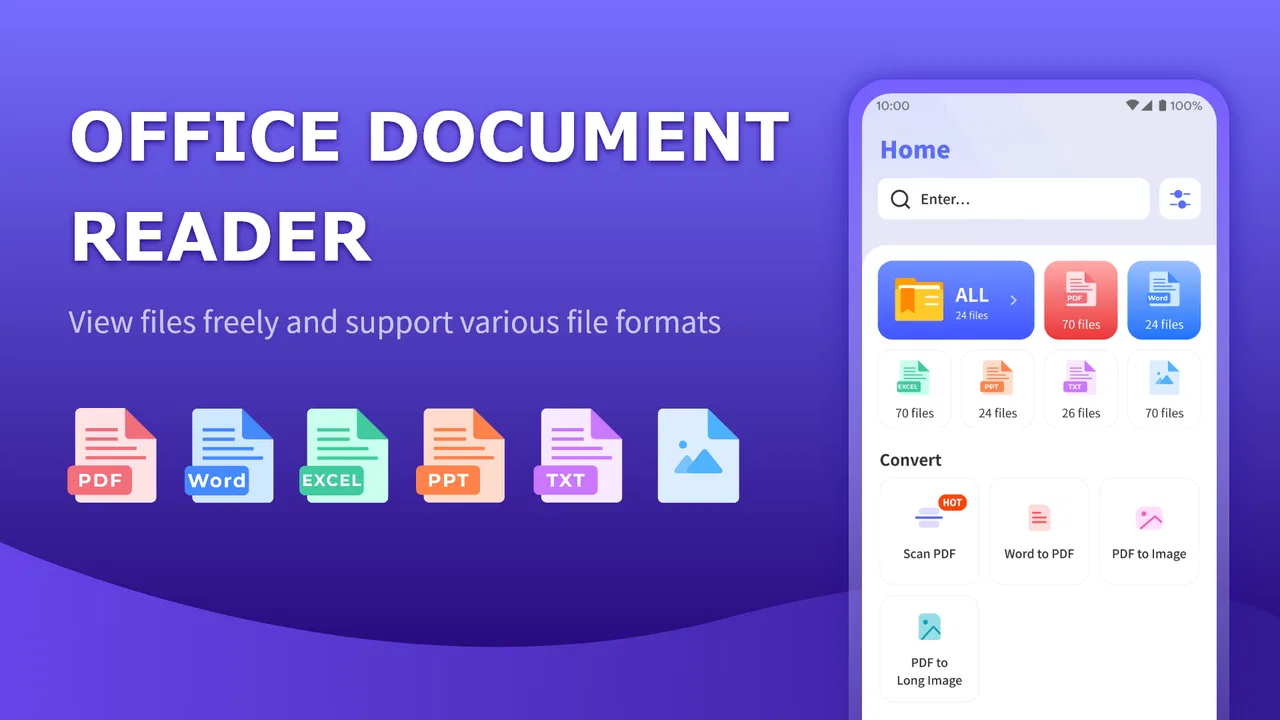
Keep the first session deliberate. Look for the part of the app that explains or leads into the kind of document work you actually need, then follow one path from beginning to end instead of tapping through every option. This approach is particularly helpful for new users because document apps often use similar words for different actions. “Open,” “view,” “edit,” “convert,” and “share” are not interchangeable, and understanding that difference prevents many avoidable mistakes.
I also recommend deciding what success means before you start. For a student, success might be finding a readable version of a class handout. For a job seeker, it might be preparing a document for the next stage of an application. For a family member, it might simply be locating and understanding a file received through another app. A clear target makes it easier to judge whether the app is helping instead of confusing activity with progress.
A realistic first-use scenario
Imagine receiving a document in a messaging app while commuting. You need to look at it before replying, but you are not comfortable with office software and do not want to install a large suite just for one task. I would save or open a copy, use All Document Guide to identify the relevant document workflow, and concentrate on the one action needed at that moment. If the task is basic, the app’s guided nature may reduce the mental load of choosing among many professional controls.
The useful habit here is to separate the original from your working copy. If you need to make changes, rename the copy in a way that makes its purpose obvious, such as adding “review” or “draft” to the filename. This is not a flashy feature, but it is a meaningful workflow improvement: it protects the original and makes it easier to retrace your steps later. A guide app is most valuable when it encourages orderly behavior rather than rushed tapping.
Once you complete the first meaningful action, pause and check the result outside your assumptions. Can you open the resulting document again? Is the text still readable? Did the layout remain sensible? If the next step involves sharing, confirm that you are sending the intended version. These checks are more important than speed when a document contains personal information or represents work that cannot easily be recreated.
Where new users may become confused
The main source of confusion is likely to be the difference between guidance and full document manipulation. A user may see a document-related option and assume that the app will provide every editing tool found in a desktop office program. I would keep expectations anchored to its basic productivity purpose. If you need detailed page design, advanced revisions, or complex file conversion, a dedicated app will usually be the better choice.
Another common misunderstanding is believing that opening a file and changing a file are the same thing. They are not. Viewing a document can be enough when you only need to read information, while editing requires a reliable way to save the result. If you cannot clearly identify where a changed version goes, stop before replacing the original. This simple rule is especially useful for first-time users who are still learning how Android handles files shared between apps.
File location can also feel unclear on a phone. Documents may arrive through email, messaging, downloads, or cloud storage, and each source can present a different route into the file. I would avoid repeatedly importing the same document from different places. Instead, choose one working copy, note where it came from, and keep the finished version in a location you can find again. A tidy file habit will make the app feel more dependable than a cluttered folder full of duplicates.
There is also a practical trade-off between simplicity and control. A focused interface can be friendlier because it gives you fewer decisions, but fewer decisions can become limiting when your task becomes unusual. That is not necessarily a defect; it is the cost of keeping the first experience approachable. I prefer this kind of restraint for basic work, but I would move to a more established office or PDF tool as soon as the document requires precision.
Three workflows that make the app more useful
First, use it as a decision aid before reaching for a larger office suite. When you are unsure whether a document needs to be edited, converted, or simply viewed, begin with the simplest route. This can prevent installing several apps or making unnecessary changes. The trade-off is that you still need to recognize when your task has outgrown the basic workflow, so treat the app as a first stop rather than an automatic final destination.
Second, build a repeatable “copy, process, check” routine. Make a working copy, carry out one document action, and then reopen or inspect the result before sharing it. This is especially valuable for forms, schoolwork, and documents received from other people. It reduces the risk of overwriting an original and gives you a clear recovery point if the result is not what you expected.
Third, use the app to learn your own document habits. Notice which tasks you perform repeatedly and which ones cause hesitation. If your needs stay basic, All Document Guide may remain a convenient lightweight option. If you repeatedly need features it does not make easy, that is a useful signal to choose a specialist alternative instead of forcing the app into a role it was not designed to fill.
These workflows are more valuable than simply tapping through the interface because they turn a basic guide into part of a safer process. The app may help with the immediate task, but your file organization and verification habits determine whether the overall experience is reliable. I would judge it on that complete workflow, not just on how quickly it opens a document.
How it compares with familiar alternatives
Google Docs is usually the stronger choice when collaboration, comments, shared editing, and cloud-based continuity are central. Microsoft Word is better suited to users who need established formatting controls and compatibility with demanding work documents. WPS Office can be more attractive when someone wants a broader office package on a phone. A dedicated PDF app is the natural choice for precise annotation, form filling, signing, or page-level PDF management.
All Document Guide has a different advantage: it can feel less heavy for someone who wants to understand a basic document task without committing to a broad office ecosystem. That simplicity may be exactly what a first-time user needs. On the other hand, people who already know what they are doing may find a guide-oriented approach slower than going directly to the tool that performs the action.
Privacy-conscious users should also think about where their documents come from and where they ultimately need to go. I would avoid experimenting with highly sensitive files until I was comfortable with the complete workflow. For ordinary, non-confidential documents, a free introductory tool can be perfectly reasonable; for legal, financial, medical, or employment material, I would favor the most established option that clearly meets the required handling and editing needs.
Who should try it, and who should skip it
I would recommend giving All Document Guide a chance if you are new to document apps, only handle basic files, or want a free way to get oriented before installing a larger office suite. It is also a reasonable option for a secondary device where you need occasional document help rather than an entire productivity environment. The Everyone rating reinforces its broad accessibility, and the low commitment makes experimentation easy.
I would skip it as a primary tool if your daily work depends on advanced formatting, collaborative editing, precise PDF changes, complex spreadsheets, document automation, or dependable professional interchange. In those cases, the usual alternatives offer a clearer match between the task and the available controls. I would also avoid relying on it alone when a document must be preserved exactly, because basic workflows are not the same as specialist document production.
My advice for a first-time user is simple: start with a copy, choose one small task, and verify the result before moving on. If that first session leaves you feeling more confident rather than more dependent on guesswork, the app is doing its job. If you immediately need features that belong to a full office suite, switch early instead of treating the limitation as a personal failure.
My final take after using it as a beginner-friendly document tool
All Document Guide earns its place as a lightweight entry point into mobile document work. XuanLong Studio has aimed it at basic needs, and that narrow focus can be reassuring when a larger office app feels excessive. The free availability, broad age rating, and support for Android 6.0 or later make it easy for many people to test without much commitment.
My recommendation comes with a clear boundary. Use it for orientation, simple document routines, and occasional productivity tasks, while keeping a careful copy-and-check habit. Do not assume that a guide-style app will match the depth of Word, Google Docs, WPS Office, or a dedicated PDF editor when your requirements become technical.
The 3.8 average suggests a mixed but usable experience rather than universal approval. That feels consistent with my assessment: the app can be helpful when your expectations are modest and your goal is clear, but it is not the right answer for every document problem. For a first meaningful success, begin with one ordinary file, follow one straightforward workflow, and decide afterward whether its simplicity is an advantage or a limitation for the way you work.
FAQs for All Document Guide
01What is All Document Guide used for?
All Document Guide is designed to help users access, organize, and work with different types of documents from one place. Depending on the version and available tools, it may provide guidance for viewing, managing, converting, or sharing common file formats. It can be useful for students, office workers, and anyone who regularly handles documents on a mobile device.
02Which document formats are supported by All Document Guide?
Support for file formats can vary depending on the application version, device, and installed components. Users should generally check whether the app works with the document types they use most often, such as PDF, Word, Excel, PowerPoint, text, or image-based files. Before downloading, reviewing the official app listing is recommended because format compatibility may change after updates.
03Is All Document Guide free to download and use?
All Document Guide may be available as a free download, but some features can depend on advertisements, in-app purchases, subscriptions, or premium access. The basic version may be enough for simple document tasks, while advanced functions could require payment. Check the store listing carefully for current pricing, trial conditions, recurring subscription details, and any limitations before installing the app.
04Is All Document Guide safe for opening personal or work documents?
Users should review the app’s privacy policy, requested permissions, developer information, and data-safety disclosures before opening sensitive files. Avoid uploading confidential documents unless you understand how the app processes and stores them. It is also wise to keep the application updated, download it only from an official store, and avoid granting access that is not necessary for its document-related functions.
05Can All Document Guide be used offline on Android or iPhone?
Offline functionality depends on the specific tools included in the app. Basic document viewing or access to previously downloaded files may work without an internet connection, while cloud synchronization, online guides, file sharing, advertising, or conversion services may require connectivity. Test the features you need after installation, especially if you intend to use the app while traveling or without mobile data.
Pros
- Covers common document formats in one convenient reference app.
- Helpful for beginners who need quick explanations of document types.
- Simple layout makes information easy to browse and understand.
- Useful offline when document guidance is needed without an internet connection.
- Can save time by clarifying terminology before creating or sharing files.
Cons
- Content may not replace official instructions for complex legal documents.
- Some entries may feel too general for advanced or professional users.
- No built-in document editing or creation tools are included.
- Information may become outdated as software formats and standards change.
- The app’s usefulness depends on how comprehensive its document database is.

All Document Guide
Gallery